
Turn a timesheet into an invoice without retyping hours
Enter time (or import CSV), download a timesheet PDF if you need it, then send the rows into Invoice Studio for a client-ready invoice.
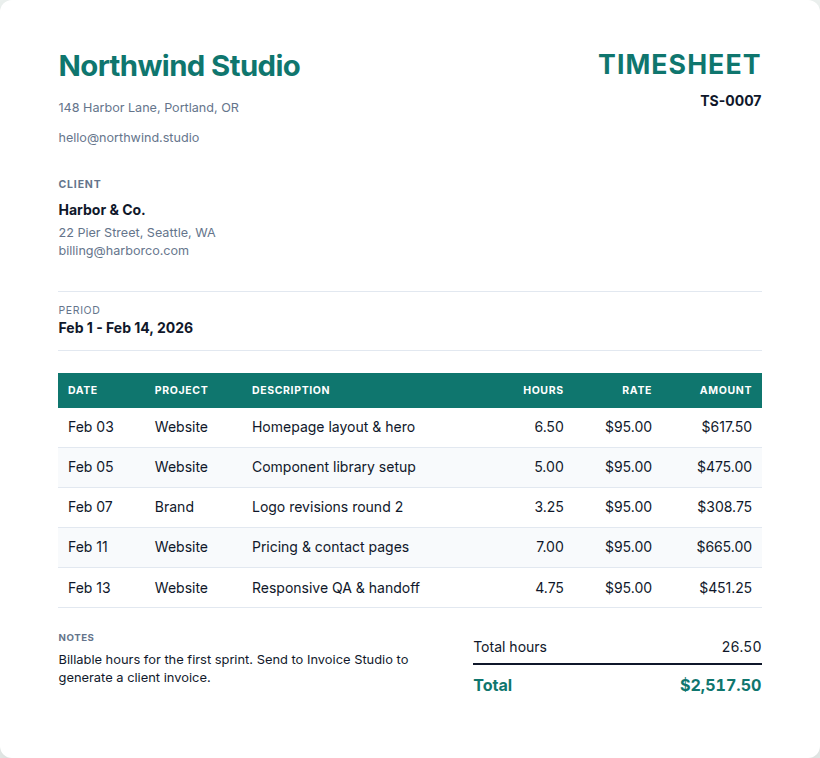
Freelancers usually keep hours in a spreadsheet, then retype them onto an invoice. Timesheet Studio keeps both steps in the browser: a timesheet PDF for the client who wants a time log, and a one-click send into Invoice Studio for the bill.
Product: Timesheet to invoice. Invoice side: Invoice Studio.
Steps
- Open Timesheet studio from My tools.
- Add entries (date, description, hours, rate) or import a CSV and map columns.
- Upload a logo if you want the timesheet branded.
- Preview. Autosave is free. There is no template save on this studio.
- Optional: generate and download the timesheet PDF (1 credit on first download of that job).
- Click Send to Invoice Studio. A new invoice draft opens with the hours as line items. This step is free.
- Finish tax, due date, and notes on the invoice. Download that PDF when ready (separate job, separate first-download credit).
Credits
Two jobs if you download both PDFs. See How shared credits work.
Related
Try it
Open timesheet studio
Preview is free. 1 credit on first download. Claim 2 credits after you verify.
Open timesheet studioFAQ
- Does Send to Invoice Studio cost a credit?
- No. It copies hours into a new invoice draft. You spend 1 credit only when you download a PDF (timesheet or invoice) for the first time on that job.
- Can I import hours from a CSV?
- Yes. Map columns in the studio, then continue as usual.
- Are there saved timesheet templates?
- No. Timesheet Studio does not save named templates. Invoice Studio does, once the hours have been sent across.